Getting started
Settings and controls
The default keys, how to change them, and what each settings tab does.
Opening settings
Open Settings from the main menu, or press Esc during play and choose Settings. It has four tabs: General, Graphics, Audio and Controls.
Changes wait until you press Apply. Apply, Revert and Defaults act on the tab you are on: Revert brings back your saved values and Defaults loads the game's own. A tab with changes not yet applied shows a star, and leaving Settings asks whether to apply them.
Moving around
Move with W, A, S and D and look with the mouse. Space jumps; press it while moving towards a fence, ledge or ladder to vault, climb or grab on. Left Shift sprints, Left Ctrl crouches, and Q and E lean left and right.
V switches between first and third person. In third person, C moves the camera to your other shoulder. Hold Left Alt to look around without turning. Holding the right mouse button with nothing to aim zooms your view in a little. While you aim in third person, most hats, helmets and hoods turn see-through, and so do your quiver and its arrows and the weapon slung on your right side. Other weapons carried on your body turn see-through when they get in the way of your aim.
Weapons and fighting
The left mouse button fires or swings and the right mouse button aims. R reloads, B changes the fire mode and X lowers your weapon or raises it again. H puts away what you are holding, and U kicks while you hold a weapon. Looking through a magnified scope, press Left Shift to hold your breath.
Z, Y and I take out your melee weapon, your hammer and your torch. G readies the throwable in your throwable slot.
Items and the hotbar
F picks things up, opens doors and containers, talks to people and drinks at fresh water. When a menu of choices appears, the mouse wheel moves through it. Tab opens and closes your inventory.
The number keys 1 to 9 use your hotbar slots; hold a slot's key to choose what goes in it. Hold N to open the quick-use wheel for slots 3 to 9, then let go over the item you want.
With a container open, E puts everything you can into it and R takes everything out. With no container open, R takes everything from the Nearby list.
Map, journal and screen
M opens the map and L opens your journal. O shows or hides the mini map, and the = and - keys zoom it. F7 opens Squads, where you invite other players.
F6 steps the HUD through Full, Minimal and Off. F8 opens Network Diagnostics, which helps when you report a connection problem.
Building
Placeable items go on the hotbar: press the slot key to start placing. R and E turn the piece one way and the other, and Page Up and Page Down raise and lower it. The left mouse button or F places it; the right mouse button or Tab cancels.
Y takes out your hammer for building and repairs.
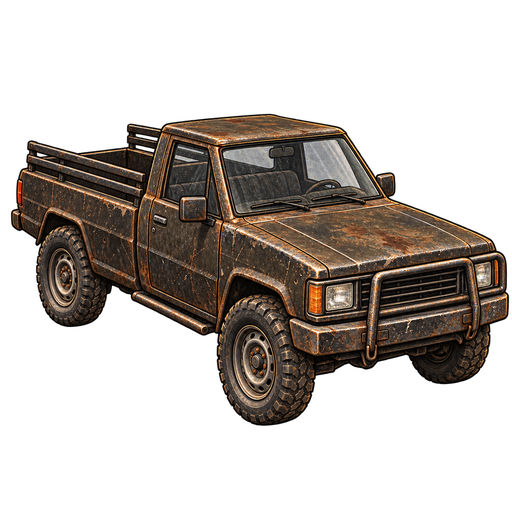
Driving
W drives forward and S brakes and reverses; the up and down arrow keys do the same. A and D, or the left and right arrow keys, steer. Space is the handbrake. As the driver, T switches the headlights, and the comma key sounds the horn or the bicycle bell.
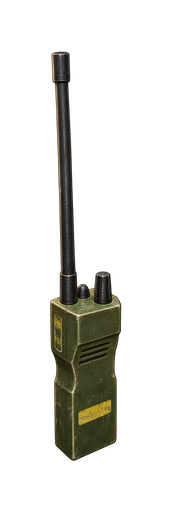
Voice chat
Turn on Proximity Chat on the Audio tab to talk with players near you. By default you speak while holding the side mouse button (Mouse 4), listed as Push To Talk in Key Bindings. Turn on Open Mic to send your voice whenever you speak instead. Proximity Chat Volume sets how loud other players are.
A small microphone shows at the bottom left of the screen while your voice is going out. Push to talk only works while the game window is in front; Open Mic keeps sending when you switch windows. If the setting reads Microphone Unavailable, the game cannot use your microphone.
Changing key bindings
On the Controls tab, Key Bindings lists every action by group. Choose the Keyboard & Mouse or Controller tab, click the binding you want to change and press the new key or button. Esc, or B on a controller, cancels.
Side and middle mouse buttons can be bound; the left and right buttons cannot, because they work the menus. Press Apply to keep your changes. Reset Bindings puts every key back to its default when you apply.
Some keys do different things depending on what you are doing: R reloads, turns a building piece and takes everything from a container.
Playing with a controller
The left stick moves and the right stick looks. A jumps, B crouches, X interacts and Y reloads. The right trigger fires, the left trigger aims and clicking the left stick sprints. RB readies your throwable and LB puts away what you hold.
On the D-pad, up and down move through menus of choices, left opens the journal and right the inventory. The View button switches between first and third person. In Settings, LB and RB change tabs. Text boxes can open Steam's on-screen keyboard.
The General tab
Language lists every language the game is in; pick one and press Apply. On its first start the game uses your Steam language if it has it.
Under Preferences, Hints shows occasional tips while you learn and Reset hints shows them all again. Units switches between Metric (C and kg) and Imperial (F and lb). Squad Invites lets anyone or only your Steam friends invite you. Raid Warnings turns raid notices and the warning sound on or off for you; raids still happen.
Reticles sets the reticle for aiming down sights, firing from the hip and magnified scopes. Local Saves can set your offline worlds aside so you can start fresh, and restore them later; online characters are not touched.
Support: Save Logs to Desktop copies your logs and last crash report so you can send them to us, and Send Logs to Threat Vector uploads them and gives you a report code. Neither includes your saves.
The Graphics tab
Display: Borderless is the default and always uses your monitor's own resolution; Fullscreen and Windowed let you choose one. VSync stops tearing, and Frame Limit caps the frame rate.
Quality starts on Auto, which picks settings for your PC and adjusts the resolution the game renders at while you play. Re-detect Graphics checks your PC again. Low, Medium, High and Epic are fixed presets, and Custom keeps your own levels, shown under Advanced Quality Levels. If your PC keeps struggling, Auto also lowers shadows, effects or textures for the rest of the session.
Upscaling renders the game at a lower resolution and scales it up. Off uses the built-in TSR; DLSS and FSR appear when your graphics card supports them. On a supported NVIDIA card DLSS is on at Quality until you choose an upscaler yourself; other cards start with upscaling Off. Frame Generation needs DLSS on a supported NVIDIA card. Upscaling changes apply after you restart the game. If the game did not close properly, it may start once with a safer upscaling setting; your choice returns on the next normal start.
Picture and HUD
Image holds Brightness, Gamma (2.20 suits most monitors), Colour Tone and Sharpening. Under Camera and Effects, Field of View sets how wide you see, from 80 to 100 degrees. Blood can be Full, Reduced or Off; injuries and treatment work the same either way. Motion Blur starts off, and Film Grain and Chromatic Aberration can be turned off.
HUD can be Full, Minimal or Off. Minimal shows only the interaction prompt when you look at something you can use. F6 changes it during play. Colour-Blind Mode corrects colours for three kinds of colour blindness, with a strength slider.
The Audio tab
Volume has sliders for Master, Effects, Ambience, Music, Dialogue and UI. Hit Sound plays a quiet thump when your shot hits someone you can see. Character Self-Talk turns your survivor's quiet comments about their condition on or off.
Recording or streaming? Turn on Content Creator Mode so the game plays only music that is safe for videos and streams. Show Now Playing, under Music, shows a small card with each music track's name and composer as it starts; it is on unless you turn it off.
Mouse, movement and view
Mouse Sensitivity sets how fast you look around. ADS Sensitivity applies through iron sights, 1x optics, a drawn bow and a readied spear, and Scope Sensitivity through magnified scopes; 1.00x is the recommended speed for both. Invert Mouse Y flips up and down. The Controller box has its own stick speeds and Invert Controller Y.
Aim and Crouch can each be Hold or Toggle; at first aim holds and crouch toggles. Toggle Sprint makes one press start sprinting and the next stop it. Exploration Camera lets the third-person camera look around freely while your hands are empty or you carry a light. Viewmodel Look sets whether a first-person weapon follows your view at once (Raw) or eases after it (Smoothed).